How to Create a New CTF on AppSecFlag ?
AppSecFlag makes it easy to host Capture the Flag (CTF) events whether for individual upskilling, internal team competitions, or community challenges. This guide walks you through each step to create a new CTF event on the platform.
Steps to Create a New CTF
Step 1: Navigate to the CTF Section
-
Log into your AppSecFlag account.
-
Go to the CTF tab from the dashboard menu.
Step 2: Click on ‘Create New CTF’
-
You'll be taken to a setup form where you can define the structure and rules for your CTF event.
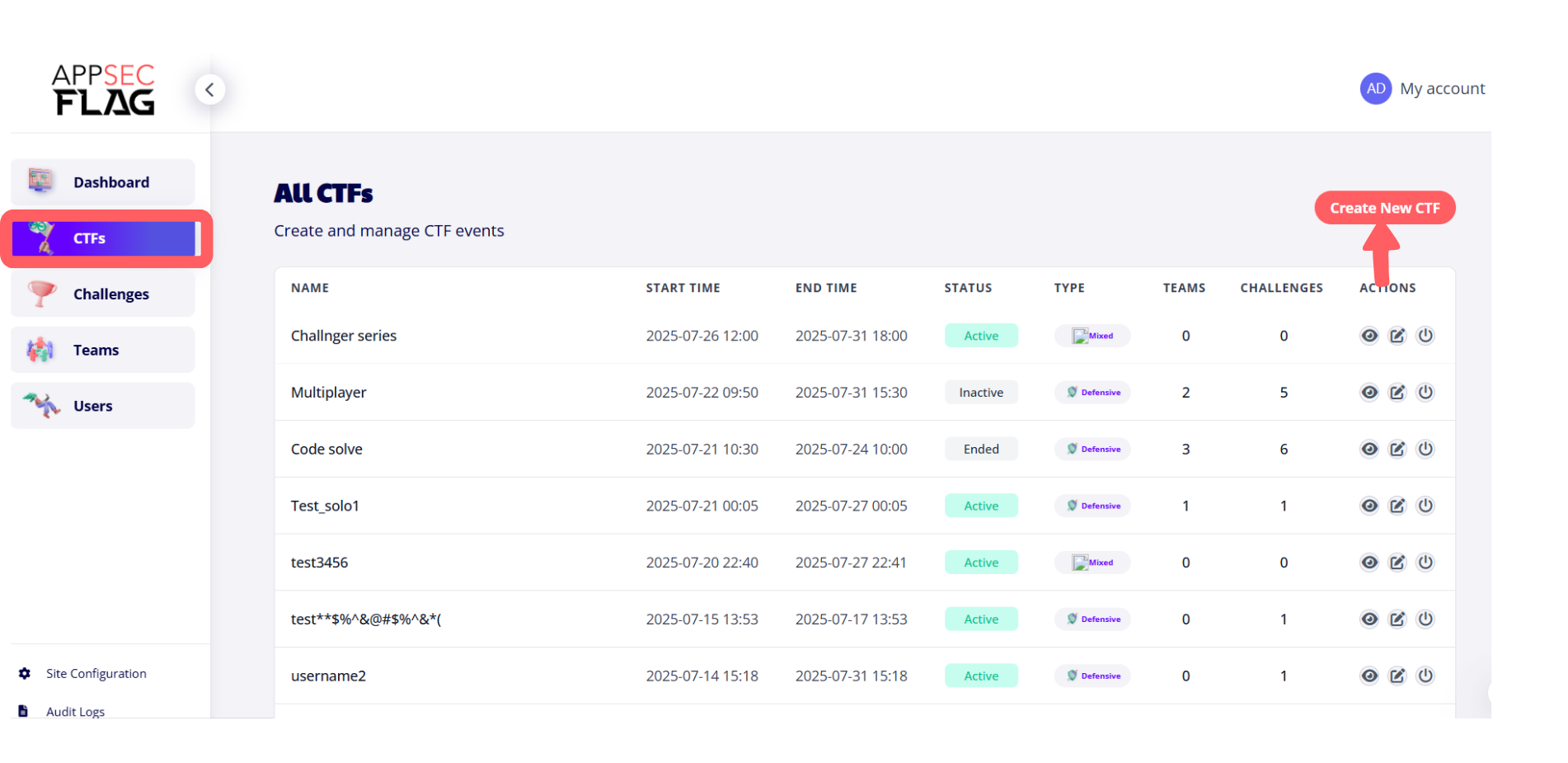 The CTFs page allows admins to manage Capture The Flag events, view event details, and create new CTFs using the "Create New CTF" button.Step 3: Choose CTF Format
Under the CTF Type section, you can select how your participants will compete:
-
Solo CTF
Participants compete individually. Best suited for independent skill-building or solo practice sessions. - Team CTFParticipants can form teams to tackle challenges collaboratively. Ideal for hackathons, company-wide contests, or learning with peers
Admins can choose the CTF type Solo for individual participation or Team for group challenges when creating a new event.
Step 4: Fill in CTF Details
You’ll be prompted to enter details like:
-
CTF Name
-
Start & End Date/Time
-
CTF Type (Defensive, Offensive, Mixed)
-
Challenge Count
-
Enable/Disable Leaderboards
- Invite Participants
A form interface to create a Solo CTF event, including inputs for name, time, participant limits, and scoring settings.
Admin enters configuration details like team size, scoring type, participation model, and schedule to create a team-based CTF.
Click Save once you’ve filled in the required details.
You’ll also see quick-action buttons for:
-
Edit – Modify your CTF details
-
Deactivate – Pause an active event
-
Copy Login URL – Shareable link for participants to join directly
This view allows you to track the status of your CTF and quickly adjust settings before or during the event.
Manage Your Existing CTFs
Once your CTF is created, it appears in the All CTFs dashboard. This section helps you view and manage all your active, draft, and ended events.
Each entry displays:
-
CTF Name
-
Start & End Time
-
Status: Active, Inactive, Ended, or Draft
-
Type: Defensive / Offensive / Mixed
-
Team Count
-
Challenge Count
- Actions: View, Edit, Clone, or Change Status
By following these steps, you can quickly set up and manage engaging CTF events on AppSecFlag whether for internal training, team building, or community-driven challenges.